How to Add or Change Social Links
You can add or change social media links on your GETQCALL QR Code page at any time to keep customers connected with your business. Update your social links whenever needed to direct customers to your current social media profiles without changing or reprinting the existing QR code.
All social media and legal links displayed on the QR Code page are configured in the location settings.
Go to the Location List.

Click the location name you want to update.

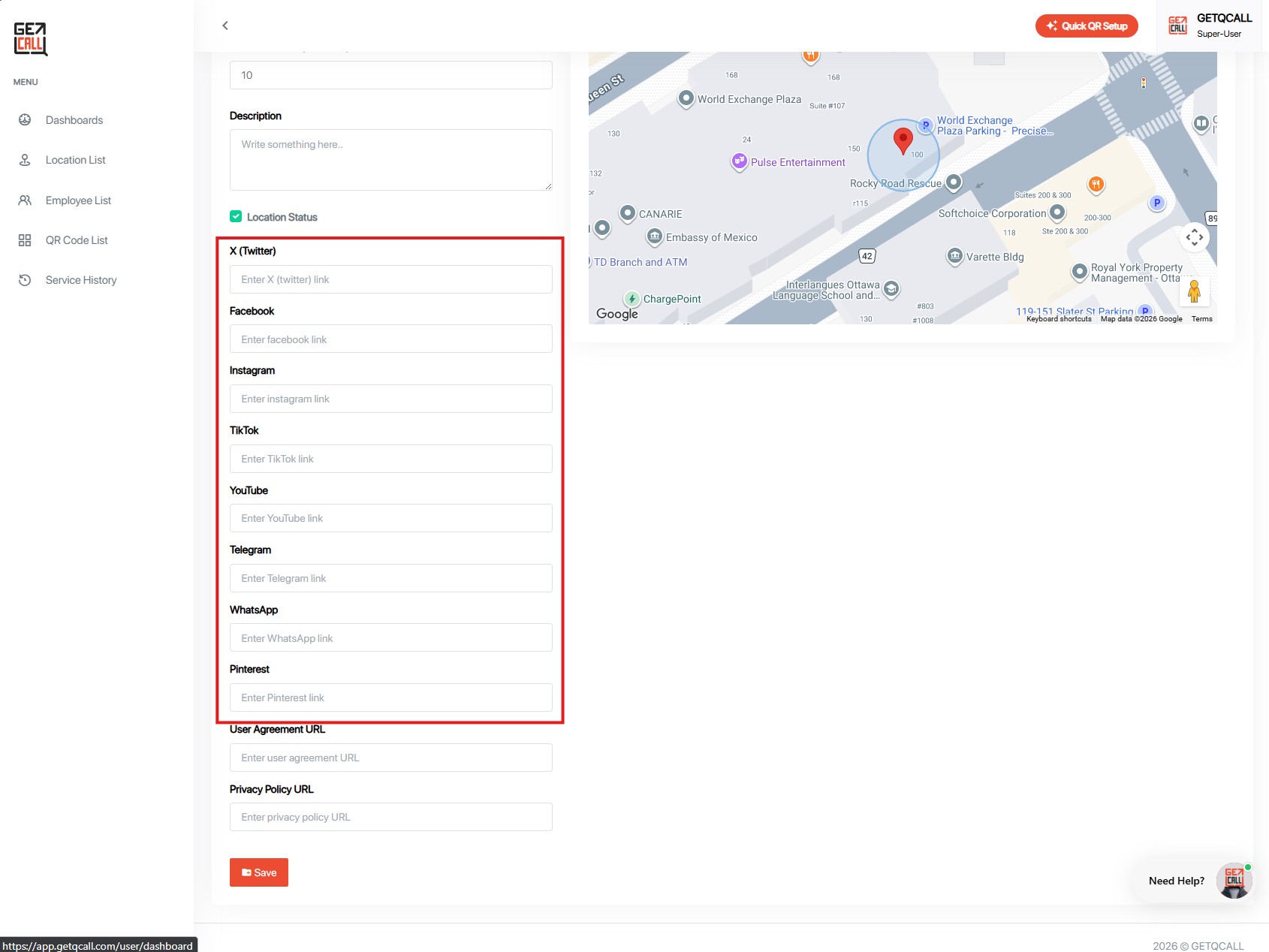
- Find the social links section and enter or update the full URLs for the applicable platforms:
- X (Twitter)
- TikTok
- YouTube
- Telegram
- You can also add or update the following legal links:
- User Agreement URL
- Privacy Policy URL
Make sure each link is complete and begins with https://.
Leave any fields you do not use blank.
Click Save to apply the changes.