
How to Set Up the Review Button
Set Up the Review Button
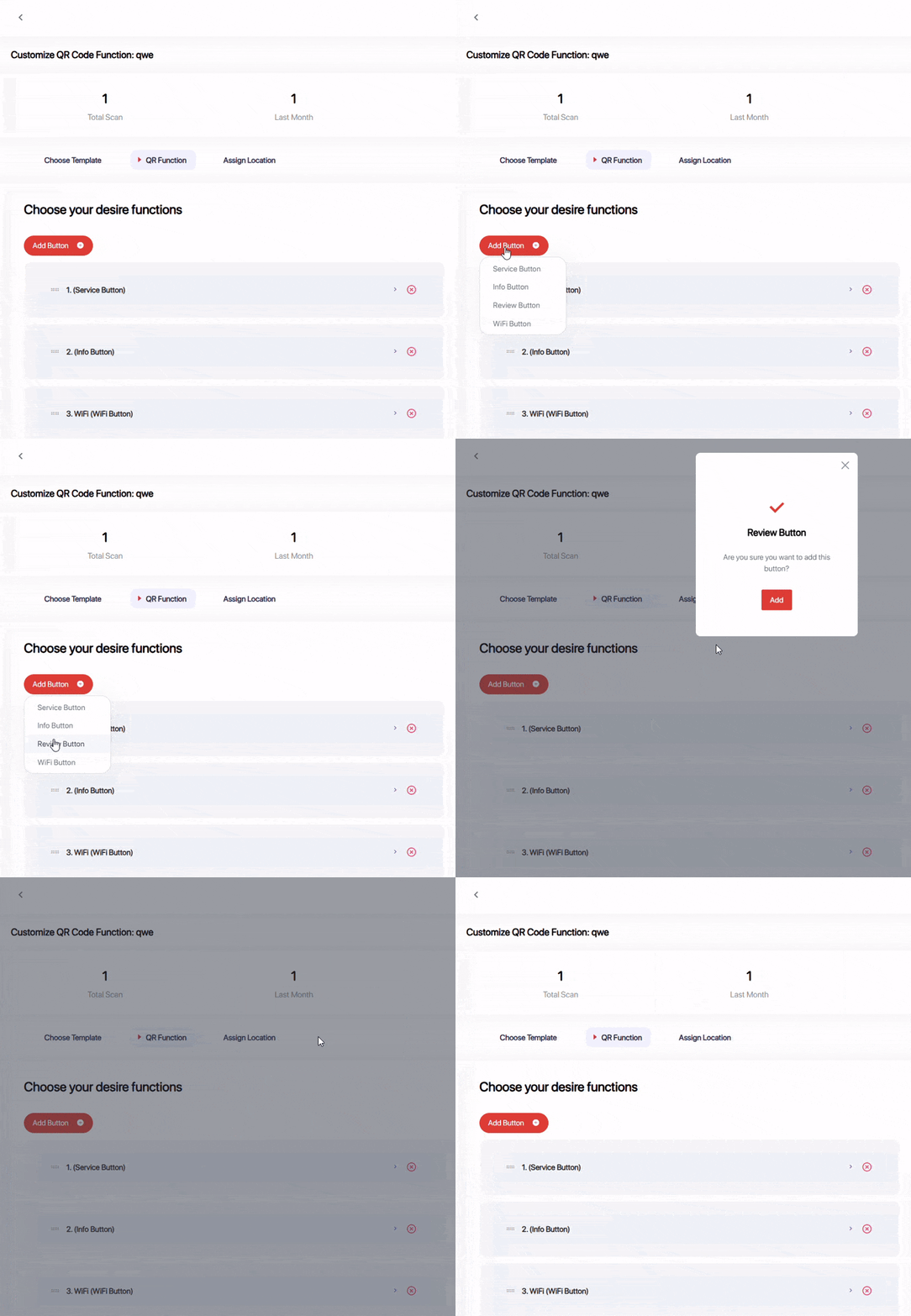
Open the QR Code page editor and expand the Review Button section.
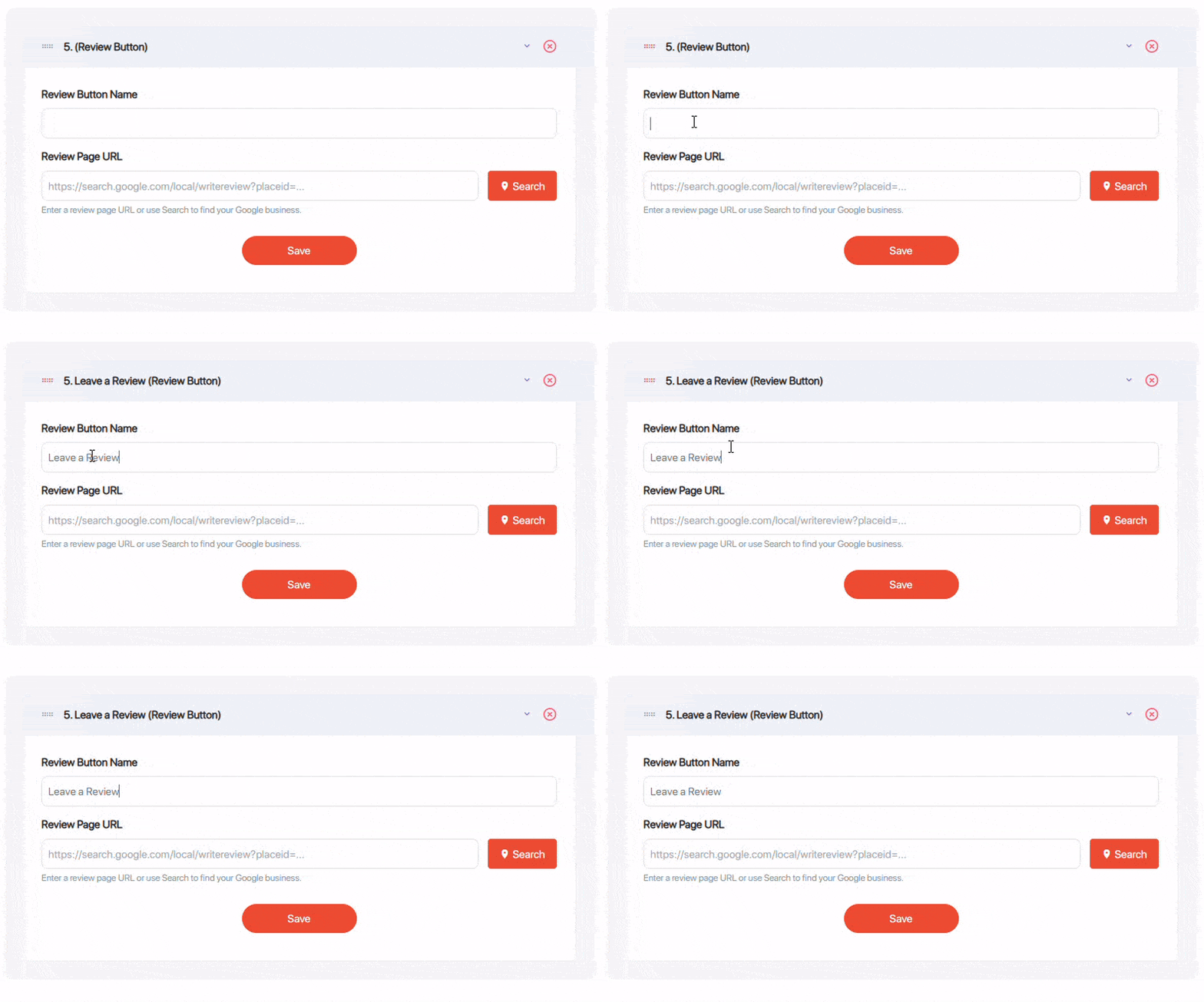
In the Review Button Name field, enter the text customers will see on the button, such as:
- Leave a Review
- Review Us on Google
- Share Your Experience
- Rate Our Business
In the Review Page URL section, click Search.
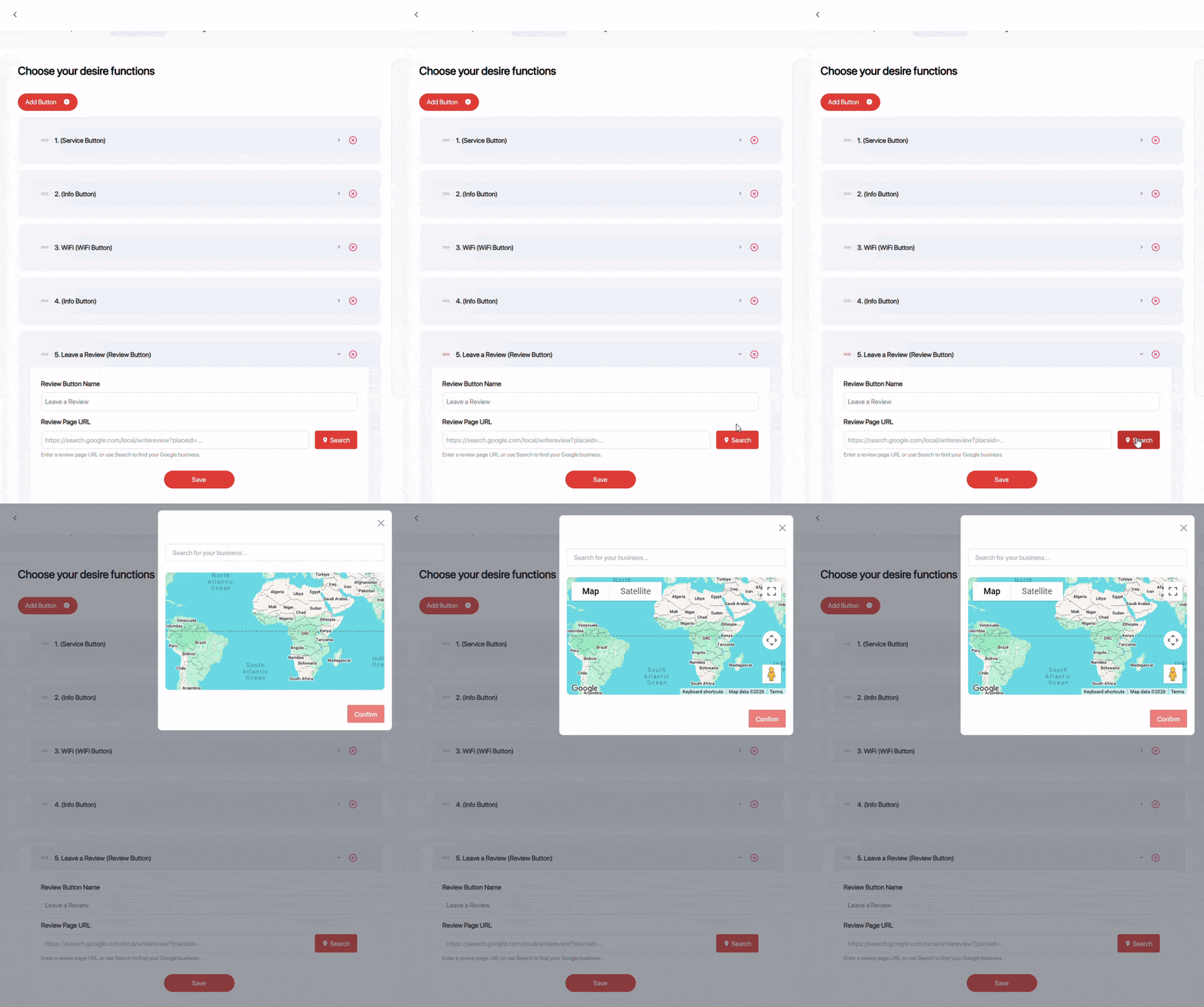
In the search window, enter your business name. For more accurate results, include the city, address, or another location detail—for example:
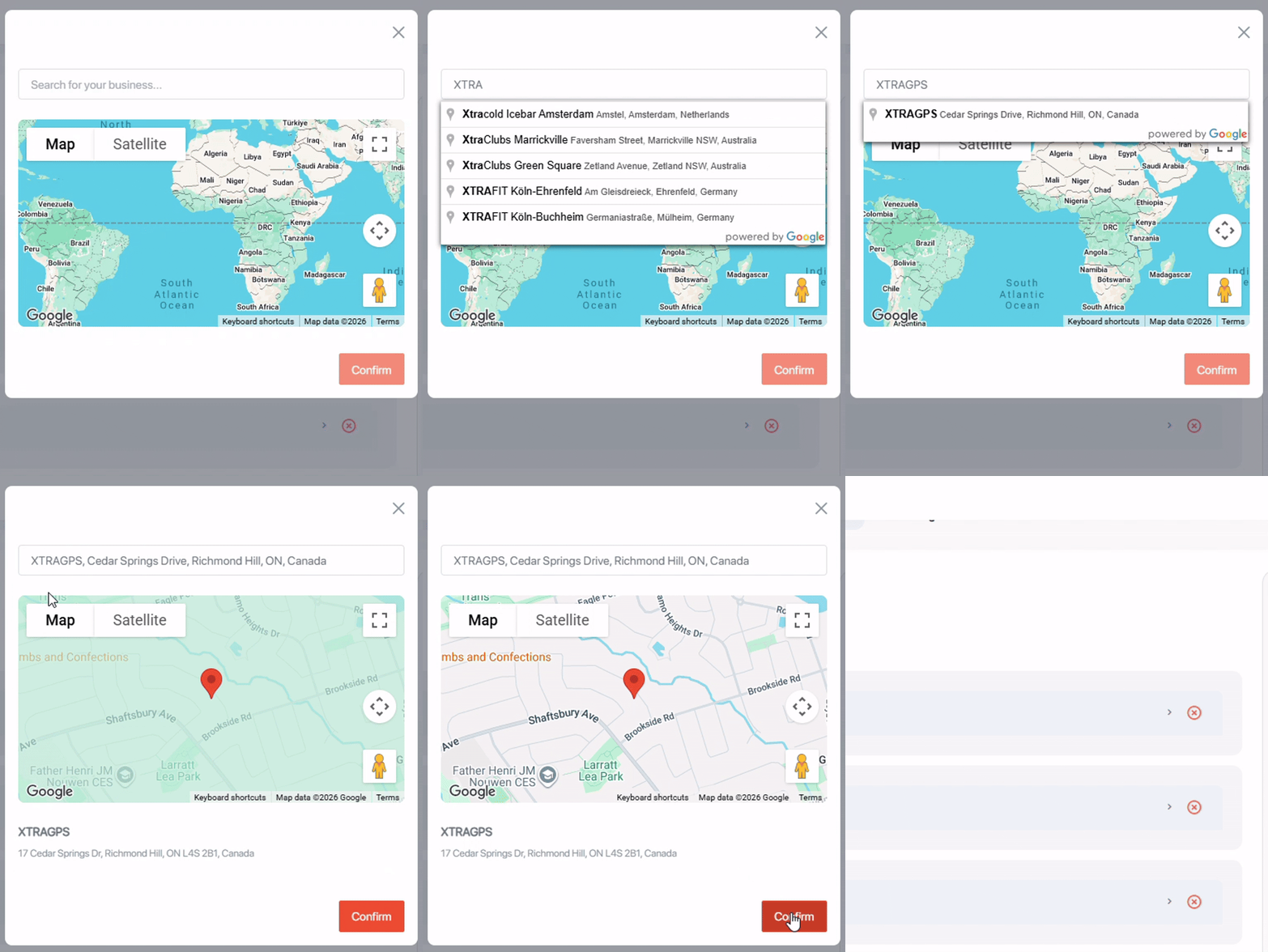
Select the correct business and location from the Google search results or map.
Click Confirm. The system will automatically generate a direct Google review link and add it to the Review Page URL field.
Review the button name and generated link, then click Save.
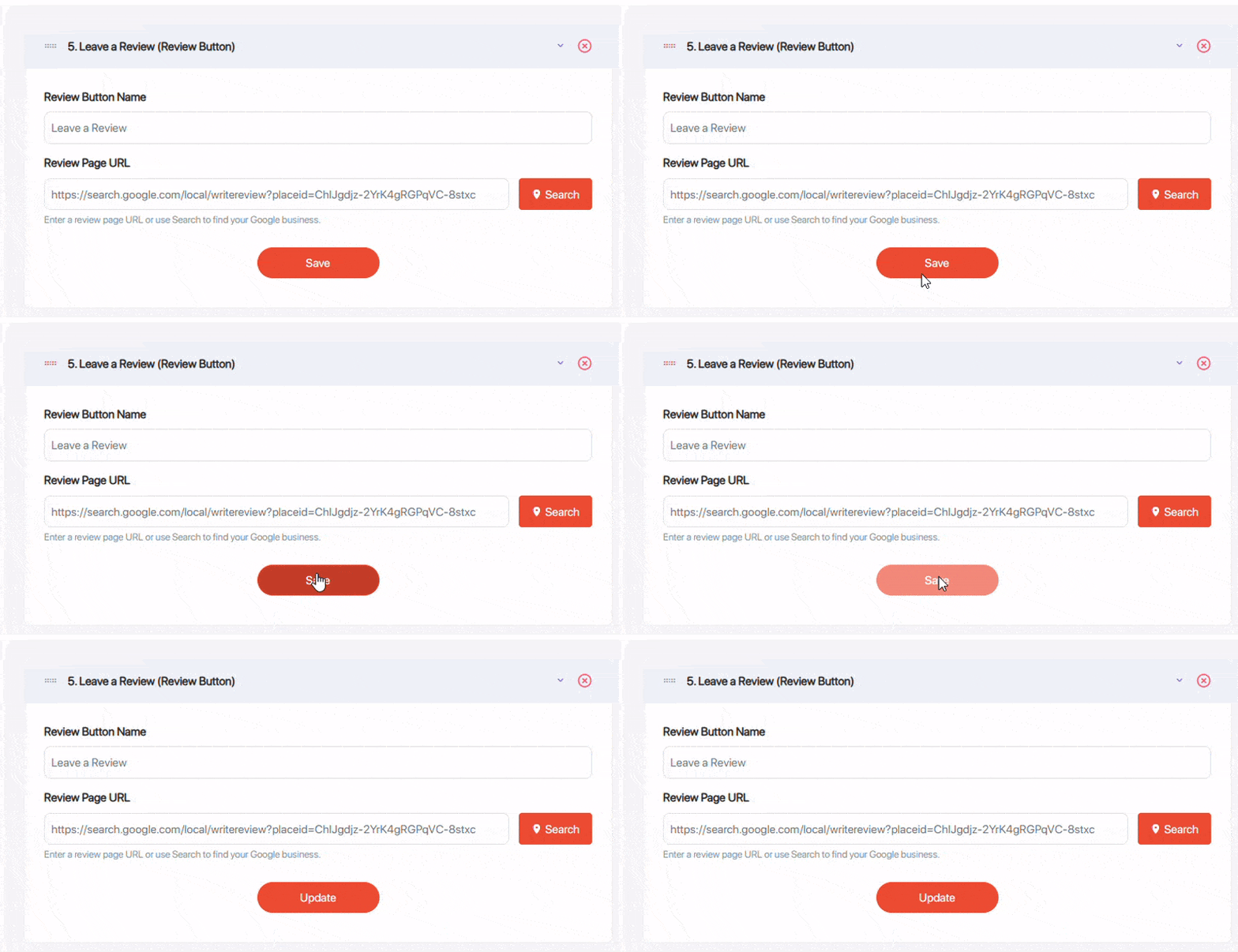
Once saved, the Review Button will appear on your QR Code page. When customers select it, they will be taken directly to the Google review form for the selected business.
Add a Review Link Manually
If you already have a direct Google review link, paste the complete URL into the Review Page URL field instead of using Search. Then enter the button name and click Save.
Important Tips
- Confirm that you selected the correct business, especially if multiple locations have similar names.
- Include the city or full address when searching for a specific location.
- Test the button after saving to ensure it opens the correct Google review page.
- Use a short, clear button name so customers immediately understand what it does.