
Push Notification Status in the Employee List
The Push Notification status in GetQCall shows whether an employee has enabled or disabled push notifications in the mobile application.
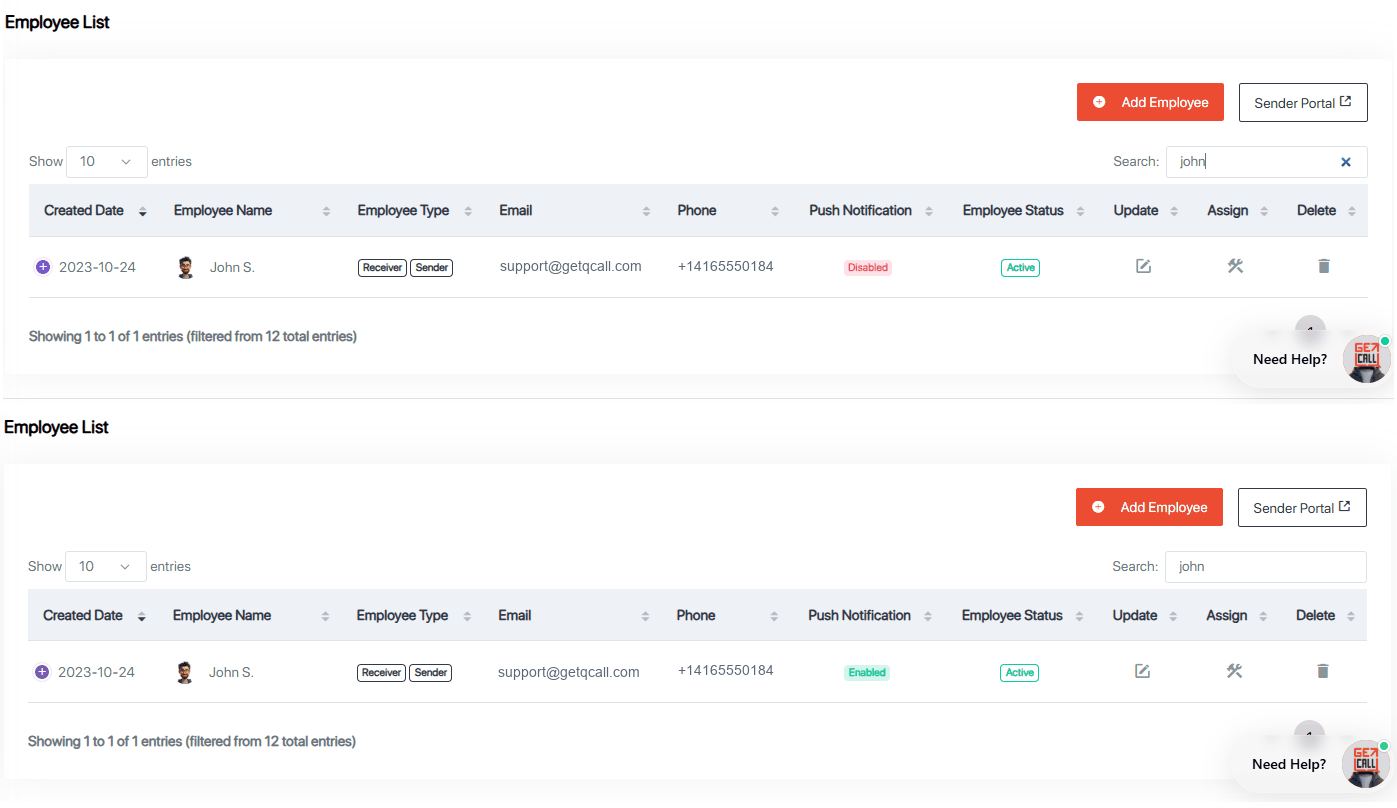
Administrators can view this status in the GetQCall Admin Panel by opening Employee List and checking the Push Notification column next to the employee.
Status Types
Enabled
Enabled means that push notifications are turned on in the employee’s GetQCall mobile app. The employee can receive GetQCall push notifications on their device.
Disabled
Disabled means that push notifications are turned off in the employee’s GetQCall mobile app. The employee will not receive GetQCall push notifications while this setting remains disabled.
How to Change the Setting
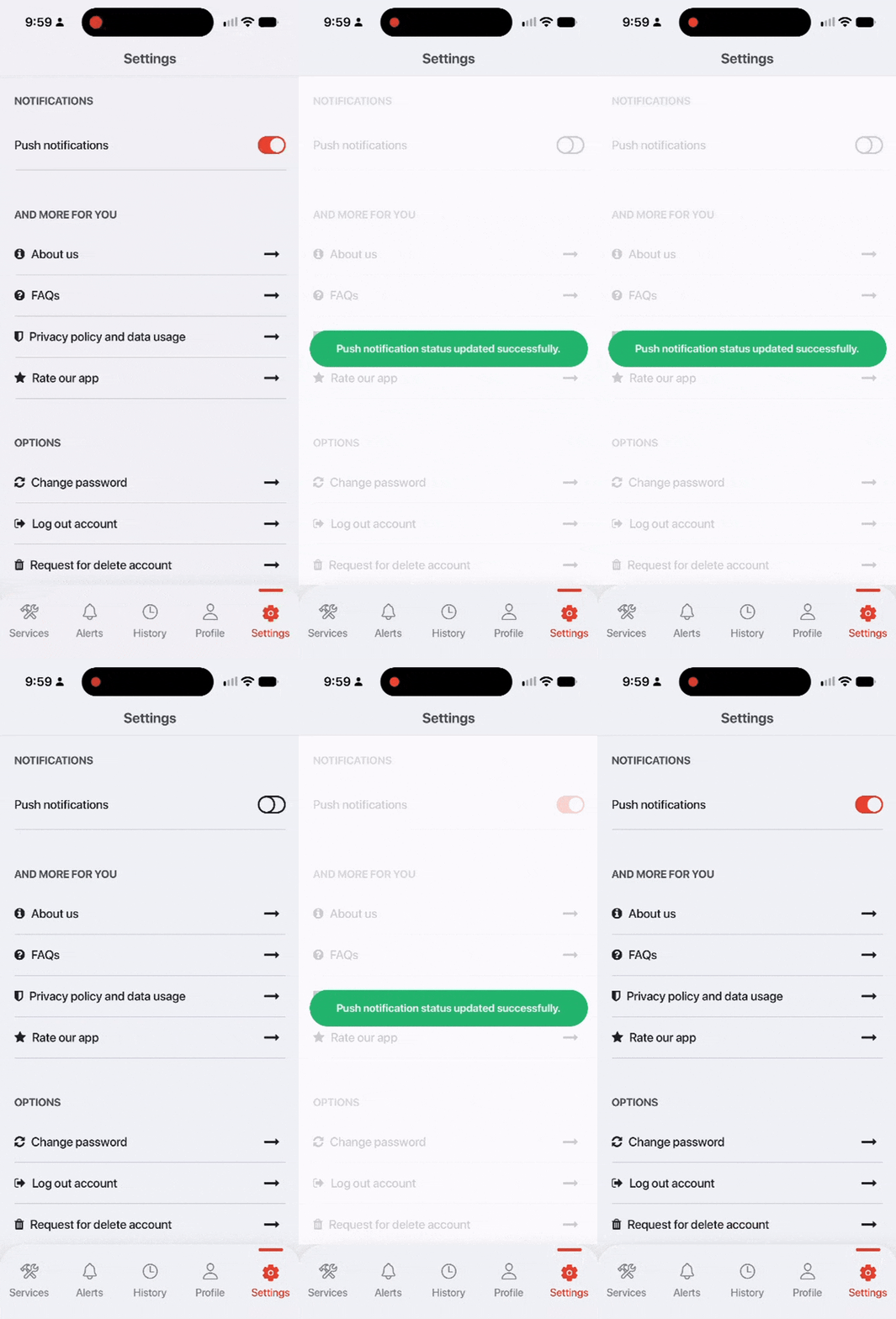
The employee controls this setting from the GetQCall mobile application on both Android and Apple devices:
- Open the GetQCall mobile app.
- Go to Settings.
- Find Push notifications under Notifications.
- Turn the toggle on to enable notifications or off to disable them.
Important: Employee Status and Push Notification Status are separate. An employee may be Active while their push notifications are Disabled.